

The entries panel
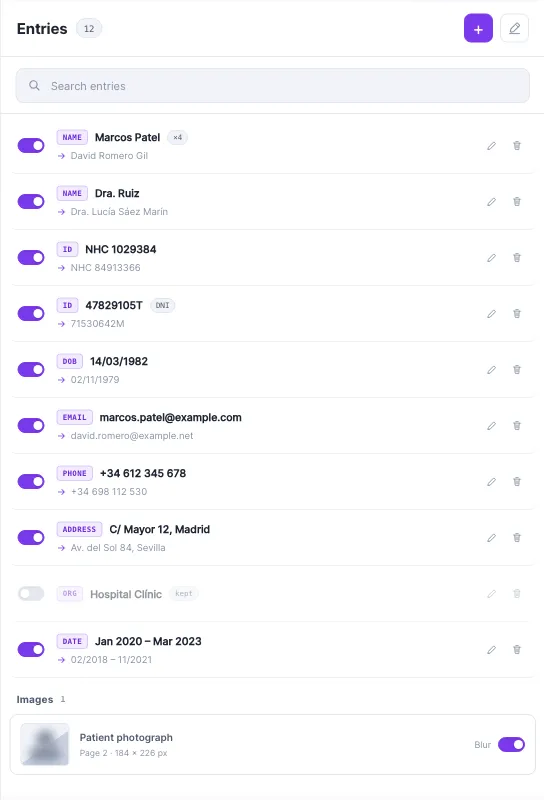
The right side of the editor is the list of entries — one row for every replacement. This is the real working surface: most of your time in the editor is spent here, reading rows and fixing the ones that need it.
What a row tells you
Section titled “What a row tells you”Each row packs a lot into a small space. Reading left to right: a switch, a type tag, the original text, an arrow to the replacement, and edit / remove buttons. Some rows carry an ×N occurrences badge. The full breakdown is in anatomy of an entry.
The header row
Section titled “The header row”At the top of the panel:
- Entries with a count chip — how many replacements in total.
- A purple + button — add an entry the model missed.
- A highlighter / draw button — turn on the drawing tool (a highlighter for Word and text, a box-draw tool for PDFs).
Search and filter
Section titled “Search and filter”Below the header is a search box. Type to filter the list by original text, replacement, or type. A few ways people use it:
- Search a person’s first name to find every entry tied to them and confirm they’re all handled.
- Search
EMAIL(or any type) to review one category at a time. - Search a fake value to check it didn’t accidentally collide with real text elsewhere.
Search only filters the view — it never changes what’s applied. See searching entries for more.
The three things you do to a row
Section titled “The three things you do to a row”- Turn it off — flip the switch to leave that value untouched in the output. The model over-redacted a public company name? Switch it off. See turning entries on and off.
- Edit it — the pencil opens the edit dialog to fix the detected text or change the replacement.
- Remove it — the trash deletes the row entirely.
Below the list
Section titled “Below the list”When a document has them, two more sections appear under the entry list:
- Images — thumbnails of embedded images with a blur switch each. See redacting images.
- Drawn areas — the redaction boxes you’ve drawn on the page, each toggleable and removable.
It all regenerates together
Section titled “It all regenerates together”Every change in this panel — a switch, an edit, a new entry, a drawn box — marks the document for regeneration. With Auto on (the default), the anonymized view refreshes a beat later so it always matches the list. With Auto off, hit Refresh. Either way, your real output file is untouched until you Save to output.