

Drawing redactions on a PDF
Some things on a page have no text to detect: a handwritten signature, a rubber stamp, a passport photo, a logo, a scanned fingerprint. For those, you draw the redaction yourself. The editor’s drawing tool lets you drag a box over any region of a PDF page, and Piixie paints a solid patch into the output at exactly those coordinates.
Turning the tool on
Section titled “Turning the tool on”Click the highlighter / draw button in the entries header (the one next to +). On a PDF it becomes a draw tool; on Word or text it’s a highlighter instead.
Turning the tool on switches the viewer to the original document — you draw against the source, not the rendered result — and the cursor becomes a crosshair.
Drawing a box
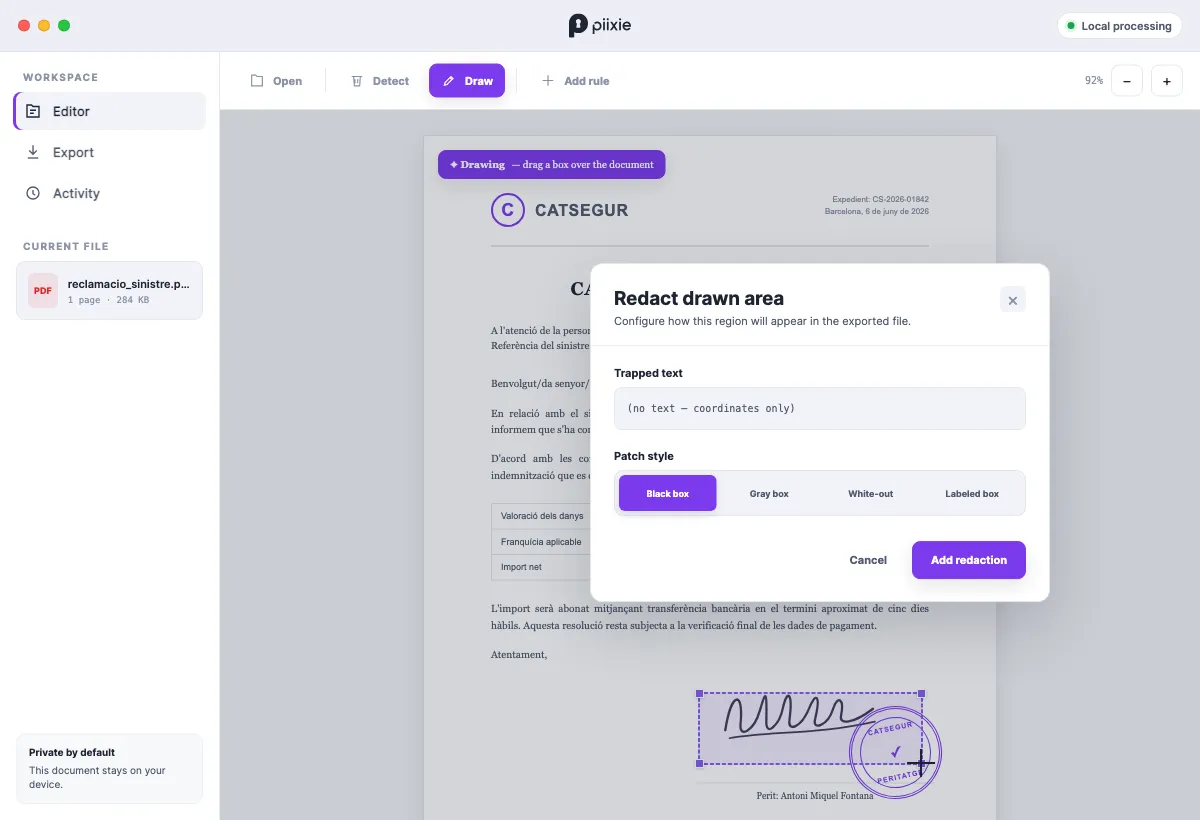
Section titled “Drawing a box”Drag a rectangle over the region you want gone. When you release, a dialog opens:
- Trapped text — any text that falls inside the box, shown for context. For a pure image region (a signature, a photo) this reads “(no text — coordinates only)”, which is your confirmation that the redaction is coordinate-based, not text-based.
- Patch style — how the area is filled:
- Black box — a solid black rectangle. The default, and the right choice for most redactions.
- Gray box — a solid gray rectangle.
- White-out — paints white, as if the area were blank paper.
- Labeled box — a filled box with a short label you type (e.g.
SIGNATURE,PHOTO), so the reader knows what was removed.
Click Add redaction and the box joins the Drawn areas list at the bottom of the entries panel.
How the redaction is stored
Section titled “How the redaction is stored”Each box is saved as a position relative to the page (0–1 coordinates), not as pixels. That means it survives zooming, and it lands in exactly the right place when Piixie regenerates the PDF — the patch is painted into the page itself, not laid over a viewer. A redacted signature is genuinely gone from the file, not just hidden.
Managing drawn areas
Section titled “Managing drawn areas”In the Drawn areas section each box has:
- A switch — turn it off to keep it in the list but not paint it (handy while comparing).
- A swatch showing its style.
- The page number and style (or label).
- A remove button.
Drawing, toggling, and removing boxes are all undoable, on the same history stack as your entry edits.
A worked example
Section titled “A worked example”A scanned insurance claim PDF ends with a peritage report: a handwritten signature, a CATSEGUR stamp, and the typed name Antoni Miquel Fontana. The model synthesizes the typed name automatically. For the signature and the stamp — both image, no text — you draw two Black box redactions, then Save to output. The delivered PDF has the name swapped and both graphics blacked out.
Tip: pair drawing with image blur
Section titled “Tip: pair drawing with image blur”If the sensitive thing is a recognized embedded image (an ID photo Piixie already flagged), you don’t need to draw — just flip its blur switch. Draw is for regions the image pass didn’t catch, or for partial areas of a page.